Chat Interaction Condition
Overview
The primary use of a Chat Interaction condition is to make your automation accessible via the Pia Chatbot. With this condition added to your automation, your automation can be initiated by a user of the Pia Chatbot.
The Chat Interaction condition can be selected in the conditions menu of the package editor:

Here is an example for what the condition looks like in a basic automation:
conditions:
- name: 'client_filter'
  optMode: 'OptOut'
  tags: 'Cloud Hybrid'
  category: 'Profile'

- name: 'chat'
  option_button: 'Test'
  option_text: 'Test'
  option_category: 'Testing'

steps:
- task: chat_interaction
  inputs:
    text: ' {=client_filter.form.option1}'
Condition Behavior
Automations with a Chat Interaction Condition will display an option in the Pia Chatbot window which allow the user to initiate/start the automation. Most of the input properties on the "Chat Interaction Condition" allow you to control how your automation is displayed to your users in the chatbot. Refer to the usage of these properties below.
The Chat Interaction condition must be combined with a Client Filter Condition to have any effect. If a Client Filter Condition is not included in the automation alongside a Chat Interaction condition, the automation will not display in Pia Chatbot.
The Pia Tech Assist Chatbot is just one way of running automations inside the Pia platform. Certain built-in activities are only available for use when building an automation for Tech Assist (i.e. an automation which has a Chat Interaction Condition):
- Chat Interaction Activity
- Chat Suggest Packages Activity
- Schedule For Later Activity
- Get Approval Activity
Input Properties
Use properties to modify the behavior of the condition.
Property Name: option_button
Property Required: Yes
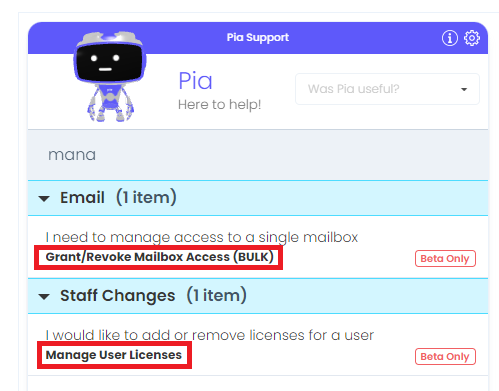
Property Description: Title of the automation (aka. automation action), this is displayed in the Pia Chatbot when a user is selecting an automation for execution.
Property Name: option_text
Property Required: Yes
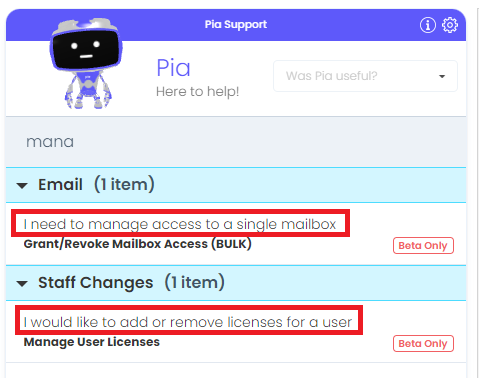
Property Description: Short description displayed under the title in pia chatbot window.
Property Name: option_category
Property Required: No, defaults to empty
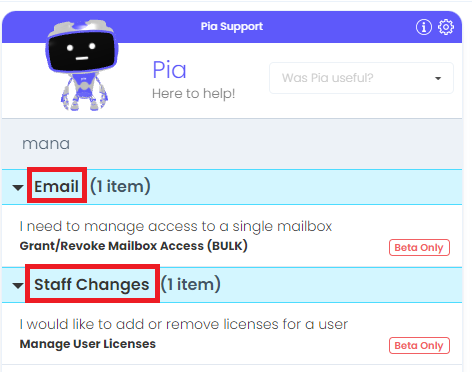
Property Description: Category used to group automations in the pia chatbot
Property Name: beta_mode
Property Options: enabled, disabled
Property Required: No, defaults to disabled
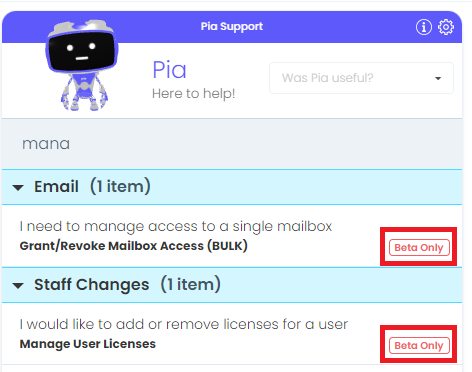
Property Description: If enabled, this will inform the user in pia that the automation is in beta. Note: This can be overriden in the client automation configuration screen.
Property Name: timeout_warning_minutes
Property Required: No, defaults to platform inactivity warning time period
Property Description: Determine the time when the first warning message will be displayed after a period of inactivity / waiting on the chatbot user to respond.
Property Name: timeout_final_minutes
Property Required: No, defaults to platform inactivity timeout period
Property Description: Determine the time when the automation will finally timeout after a period of inactivity / waiting on the chatbot user to respond.
Output Properties
There are two properties which the Chat Interaction condition makes available.
Property Name: client_id
Property Description: This will return the client id for the ticket context which Pia Chatbot is running.
Most of the time this will return the same value as the $ctx_client_id variable, however this property has a special purpose in that it will only have a value if the automation was initiated via chatbot. If the automation was not initiated via the Pia Chatbot (e.g. perhaps you have a ticketing system condition on this automation), then this property would have a null value.
Unless you are using the property for this purpose, you should use the $Ctx_Client_Id variable in most cases.
Property Name: initiated_by
Property Description: This will help you determine if a Client, Engineer or Pia caused this automation to execute.
- Engineer: This will be the value in most cases at the current time. This will be returned where the user of the Chatbot is a Service Desk Engineer.
- Pia: If pia starts the automation automatically via its AI condition, the value will be returned as "Pia".
- Client: Not Yet Implemented. This is a placeholder value for when Pia's functionality is available to clients in the future.
Example of Usage
The example below demonstrates how the properties can be configured for a automation which manages user licenses. In the example below, the automation will display a warning after 30 minutes of inactivity and timeout after a further 60 minutes (or 90 minutes since the start of inactivity).
# Pia Automation Package
conditions:
- name: 'chat'
  option_button: 'Manage User Licenses'
  option_text: 'I would like to add or remove licenses for a user'
  option_category: 'Staff Changes'
  beta_mode: 'enabled'
  timeout_warning_minutes: '30'
  timeout_final_minutes: '90'

# Wherever you use a chat condition, you MUST have a client_filter condition.
# A chat condition will not work without a client_filter condition
# Refer to client_filter documentation for more information
- name: 'client_filter'
  optMode: 'OptOut'
  lockTo: '50'

steps:
# Not displayed