Pia Chat
Want to use Pia Chat? Talk to your PSM and they'll guide you through the pricing details.
Service Desks don’t just belong in your PSAs anymore, they belong where your clients already work. Pia Chat brings your support directly inside Microsoft Teams, transforming routine requests into easy conversations. Clients type their needs, Pia’s Resolution Assistant responds instantly, and tickets close while engineers stay focused on complex issues that demand expertise.
Pia Chat workflows and automated actions handle the rest. Clients can submit requests that become PSA tickets in real time, supported by features like SmartForms and Approvals. And when human judgment is required, Pia’s Resolution Assistant passes the request to your technicians with full context intact, ensuring nothing is lost in transition.
Here's a Quick Preview
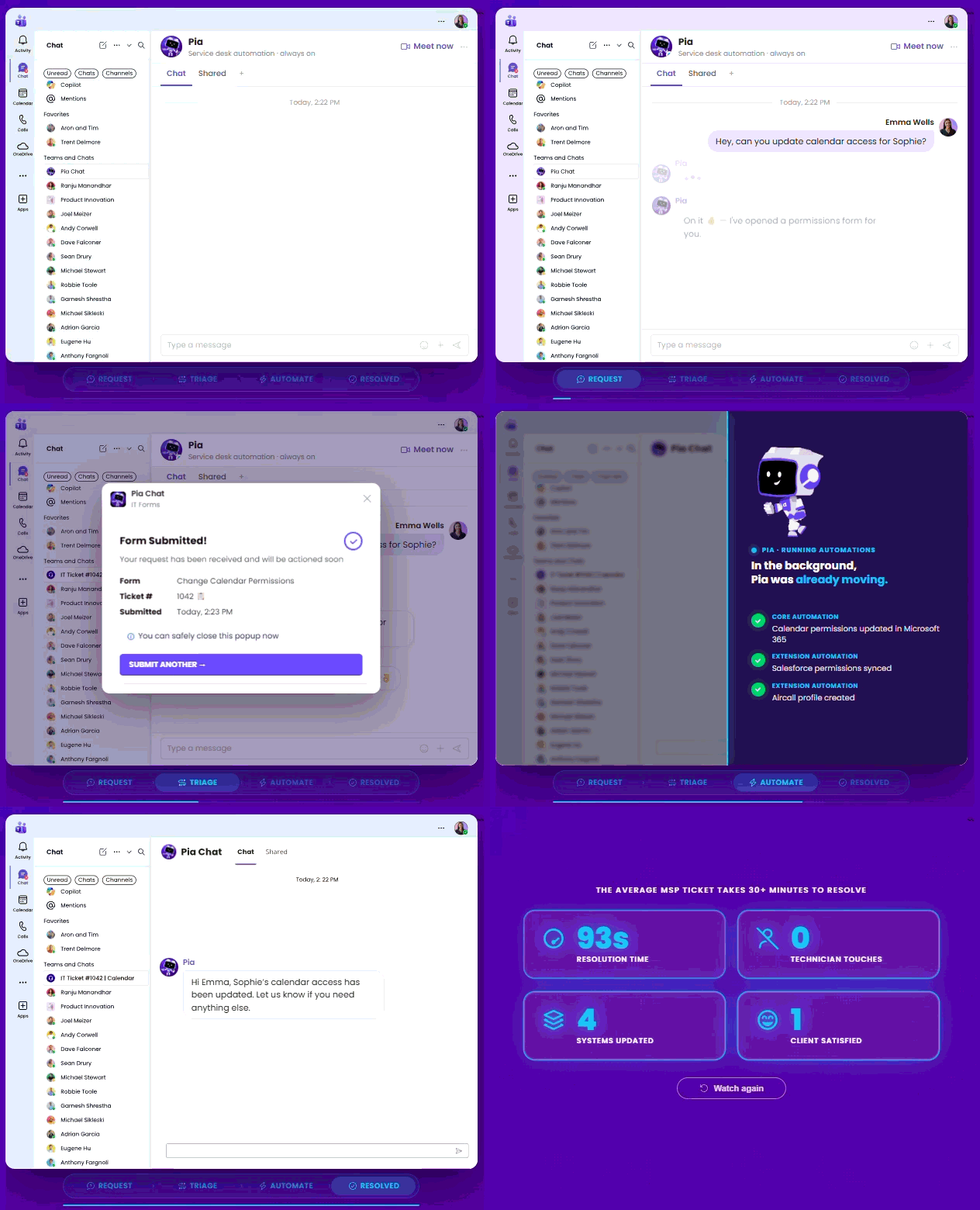
How Clients use Pia Chat
Now that you’re familiar with what Pia Chat is, let’s explore how your clients actually use it within Microsoft Teams.
Once access is granted, Pia Chat is automatically installed in your client's Microsoft Teams and a welcome message is sent to the user in Teams through Resolution Assistant. The Resolution Assistant is the central hub where users interact with Pia. From here, clients can quickly check open tickets, log new requests, or access embedded SmartForms, all within the chat.
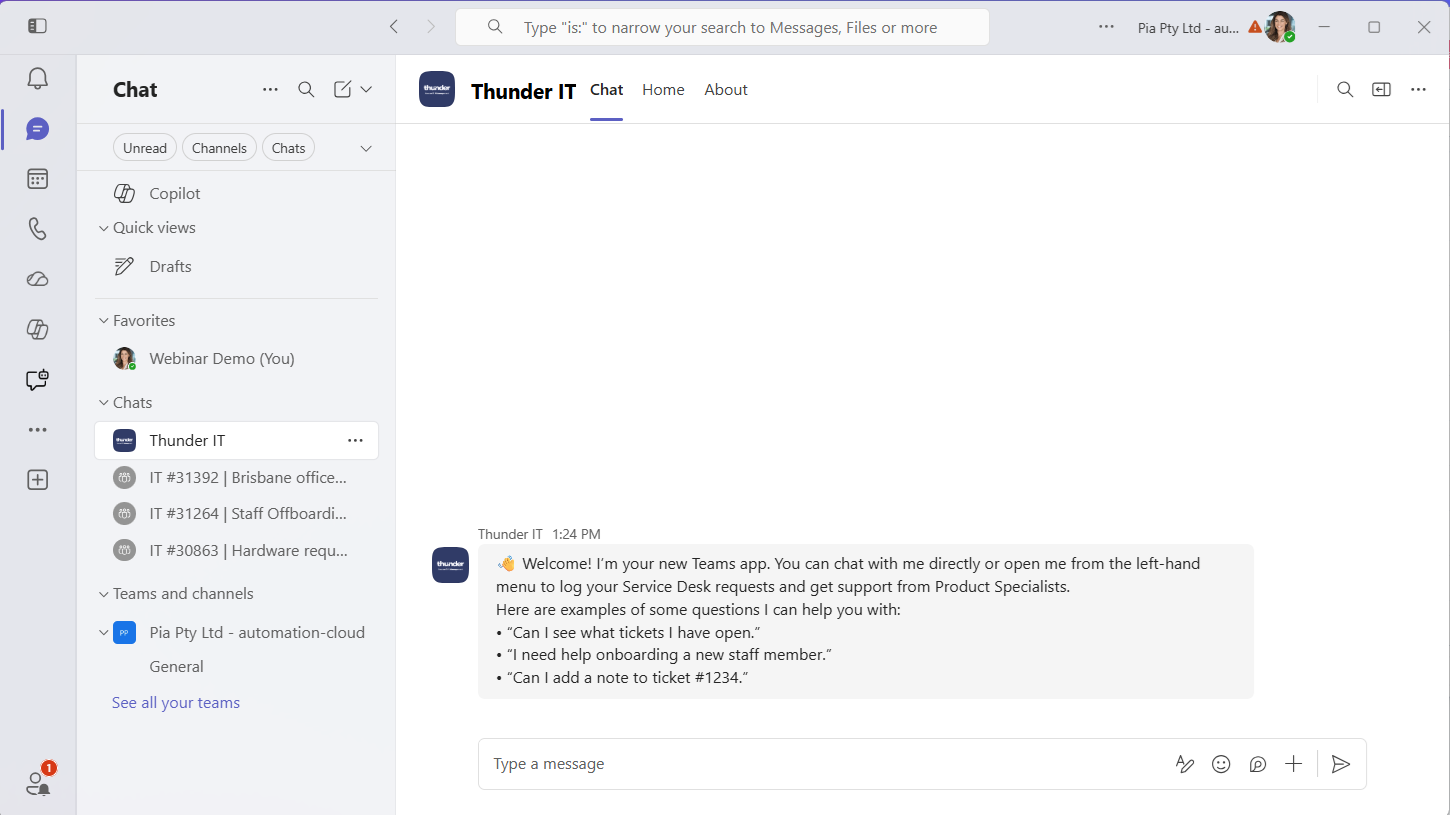
Here is an example of a user checking open tickets:
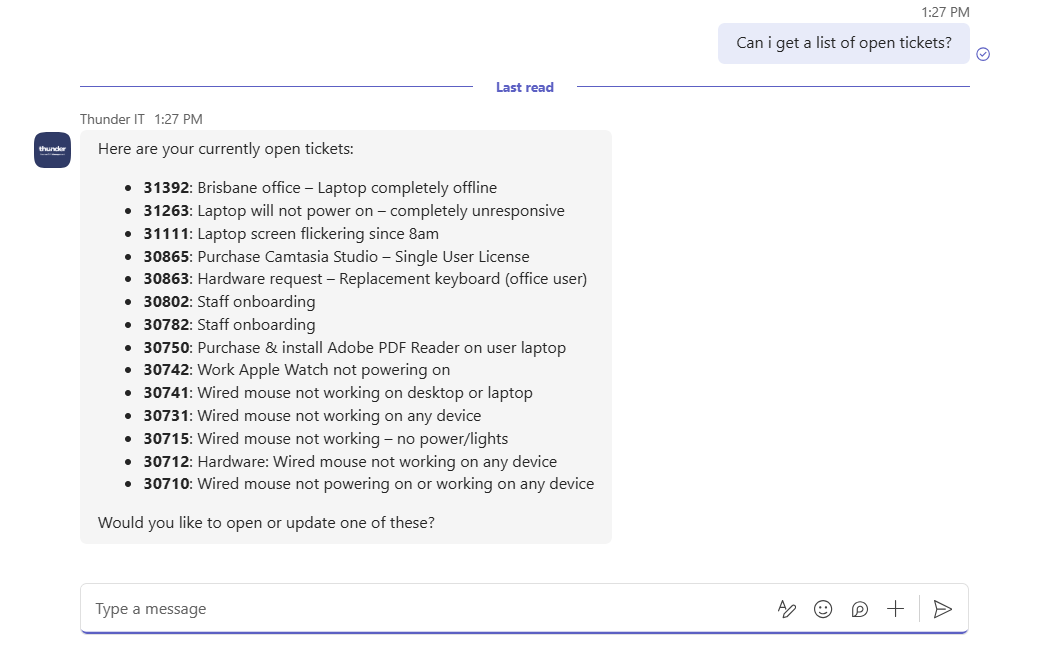
Logging a new request in Pia Chat
With Pia Chat, your clients can resolve issues in multiple ways. Some requests are handled instantly within the chat, while others require Pia to log a support ticket for further assistance.
When the AI cannot fully resolve a problem in the conversation, Pia makes it simple for clients to create a ticket and continue the process smoothly. Here are a few ways clients can log a ticket when additional support is needed:
- via Pia Chat
- via Embedded SmartForms
- via Automated Actions
To log a ticket within the chat, your clients can simply inform the Resolution Assistant about the potential issue and that they would like to log a ticket. Pia's Resolution Assistant will then ask them any missing information it needs to log the ticket.
Once the client provides the information, it will log the request and provide them with a ticket number and a dedicated chat for the ticket.
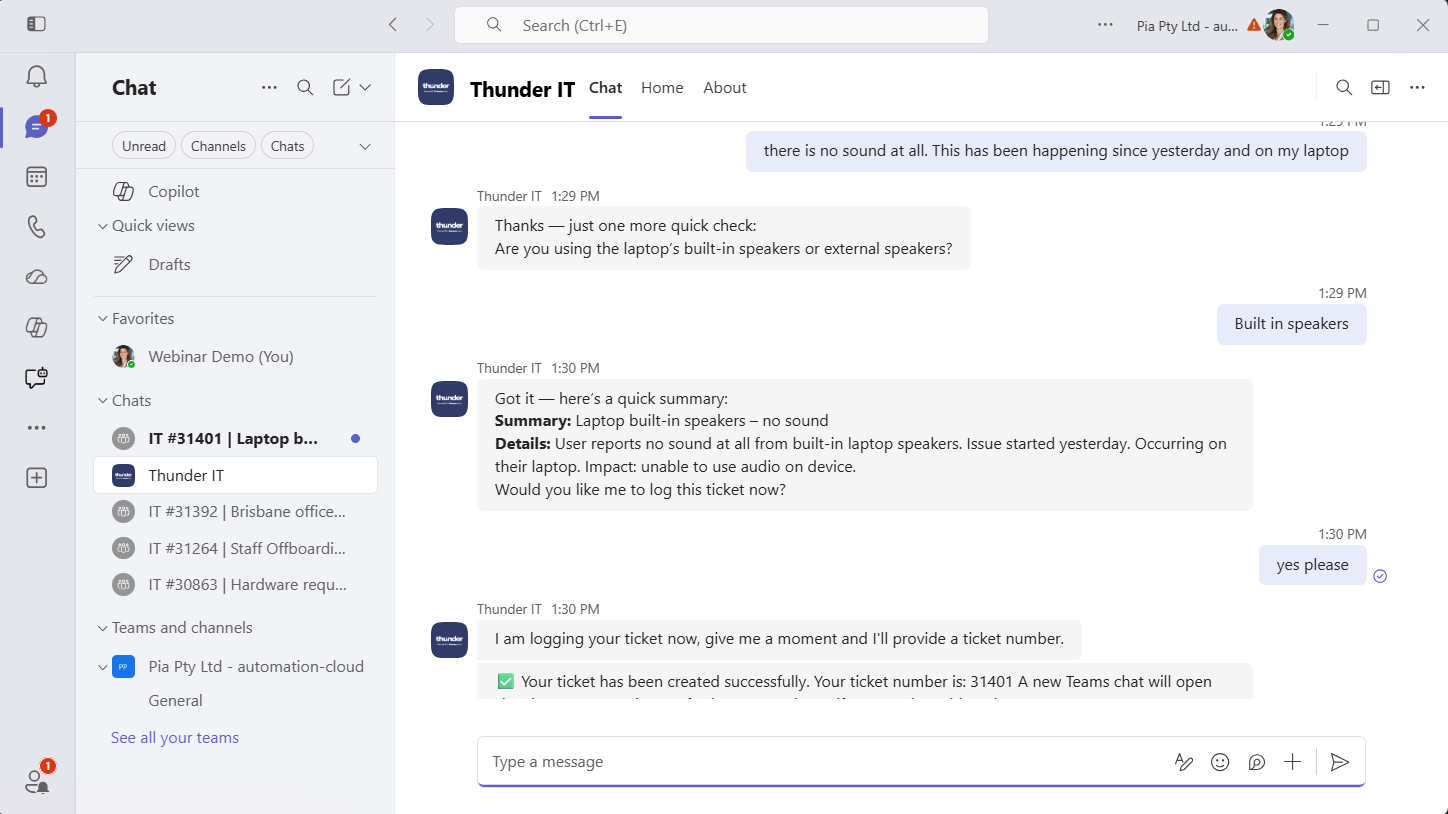
For your clients that have SmartForms enabled, Pia will check whether the issue can be resolved using SmartForms when a user indicates in chat that they need to log a request. If a relevant SmartForm is available, it is presented directly within the chat for the user to complete.
Reminder: All SmartForms, including embedded ones, follow the SmartForms Ticketing Defaults.
Once the user fills in the required details and submits the SmartForm, Pia automatically logs the request and provides the user with a ticket number and a dedicated chat for the ticket.
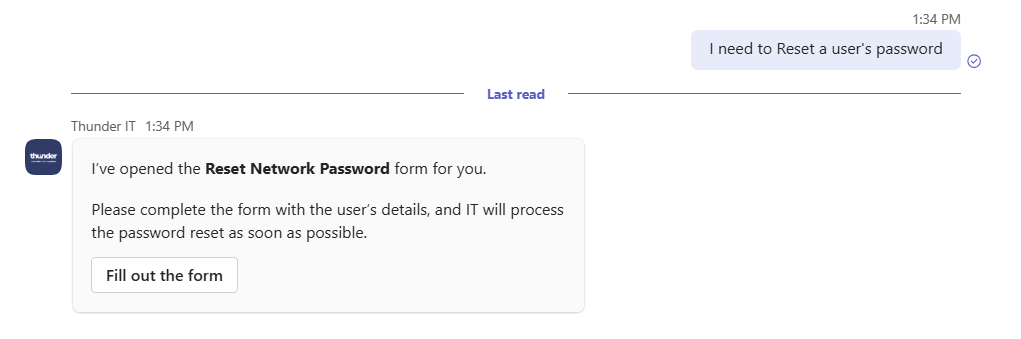
With Automated Actions, you can configure Pia to perform multiple actions for the client to help them resolve their issue. One of the actions that it allows you to configure, is to log a request. When an Automated Action is configured with a predefined intent to log a request, Pia will execute the task whenever a client’s inquiry matches that intent.
Here is an example of Pia running an Automated Action for the client:

Manage Tickets in a dedicated chat
For all three scenarios above, the Resolution Assistant will also open a new dedicated chat for the newly logged request along with the new ticket number. Your clients will be able to use the chat to make any updates to the ticket such as adding a note or changing details or viewing any status updates to the ticket or talking to an engineer.
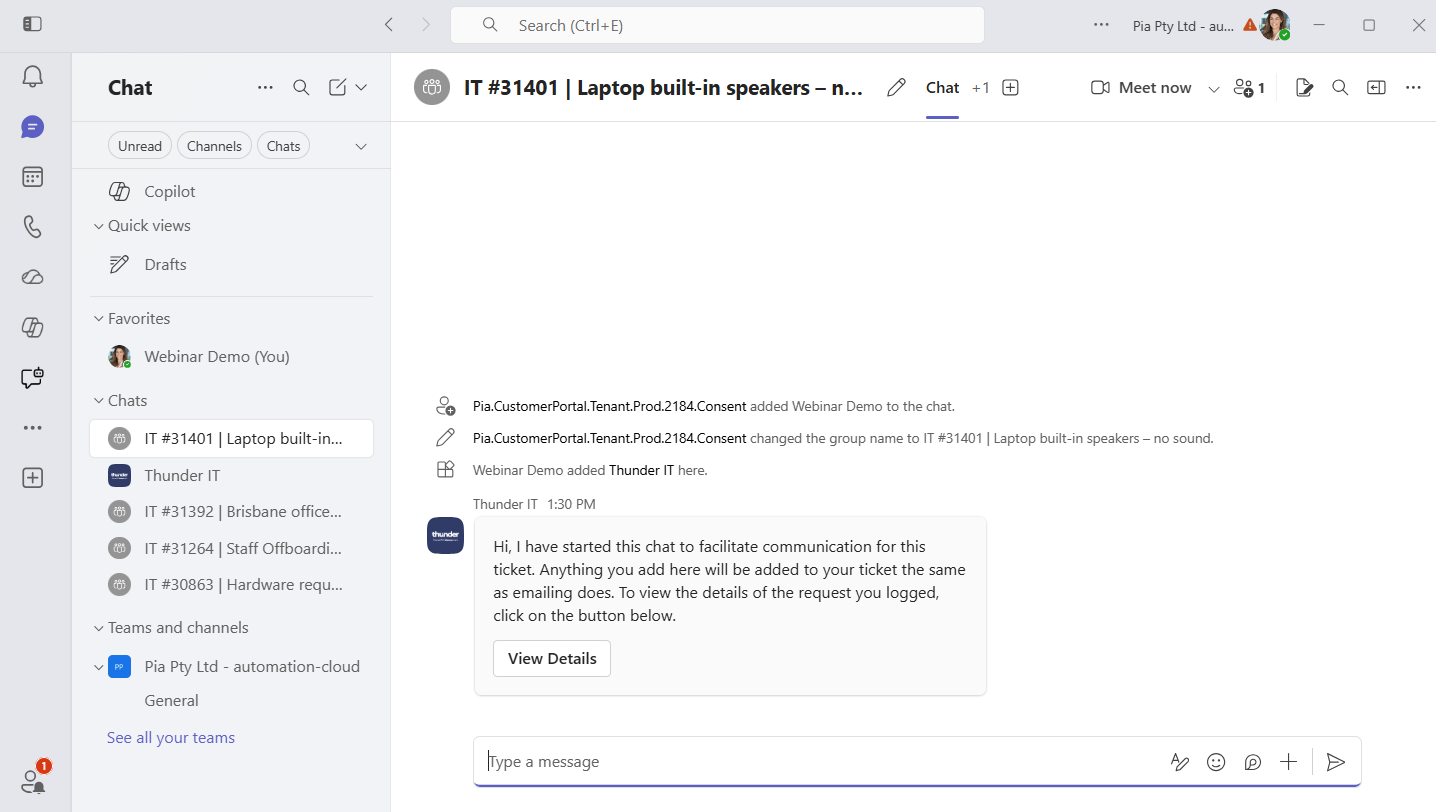
Getting an Engineer's help in Pia Chat
Within the dedicated chat, your clients can speak to the Engineer directly if Pia is unable to resolve their issue. For each ticket that is logged via Teams conversation, your Service Desk Engineers will be able to see a new tab in the Tech Assist chatbot. This tab allows them to converse with the clients directly. You're clients will be able to see any messages from the engineer in the dedicated chat for the ticket.
For tickets which were not logged through Teams, don't worry! Pia provides an option to start a Teams chat for an existing ticket which may have been logged through email, phone or the SmartForms portal.
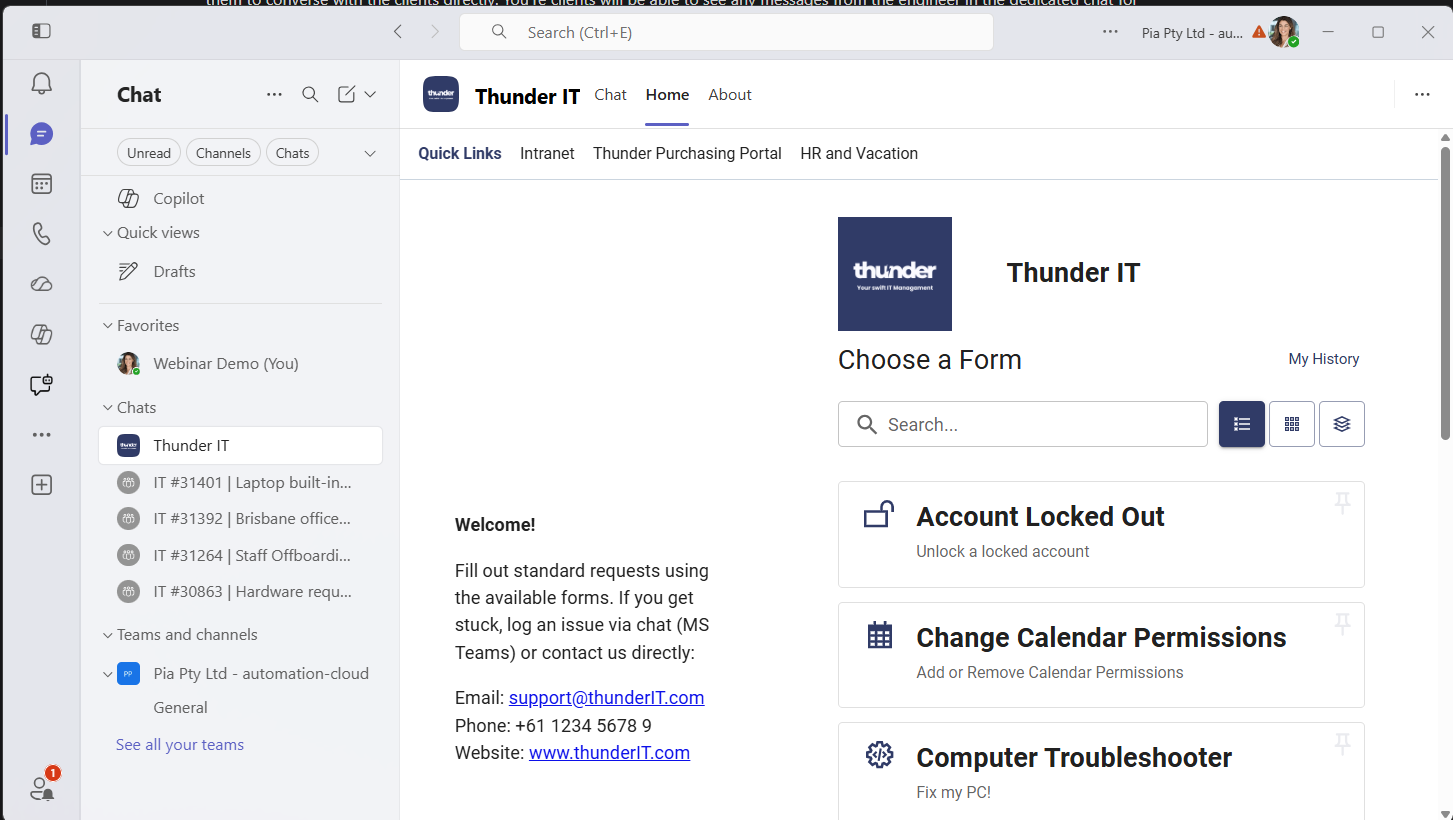
Accessing SmartForms Home screen from Pia Chat
You can access SmartForms portal directly from the home screen of Pia chat. From here, you can find SmartForms available to you and submit your request.
Setting Up Pia Chat
Getting Pia Chat up and running is simple. Just follow these steps and your clients will be ready to go in no time:
- Turn on Pia Chat from the Engage home page by clicking the 'Enable' button located under the Teams Chat heading
- Configure global & customer specific branding
a. Setup global branding to be used across the majority of your clients
b. Setup client specific branding if you want to override global branding - Configure workflows and automated actions
a. Configure your custom intents using global automated actions and customer specific automated actions
b. Setup ticketing defaults - Define Teams users through existing client roles or by setting up new roles
- Activate Pia chat for your clients. Pia will automatically install and configure the Pia Chat app in their Microsoft Teams