Thread
Pia SmartForms is now integrated with Thread’s Microsoft Teams Magic Agent, giving you a faster and more accurate way to capture client request details. With this integration, SmartForms can be accessed directly within Thread's chat window, allowing your clients to submit information instantly without needing to log into the SmartForms Portal.
This article walks you through how the integration works and outlines the configuration steps required before SmartForms can be accessed through Thread.
Part 1: Configuring Thread Integration in Pia
Client Setup
The first step to getting your hands on the integration is configuring your clients to use SmartForms. Since Thread only allows accessing SmartForms to the clients that have SmartForms enabled in Pia, make sure the following steps are complete:
Your clients must have a Microsoft Office 365 subscription linked to your client in Pia configured through the Microsoft Graph API.
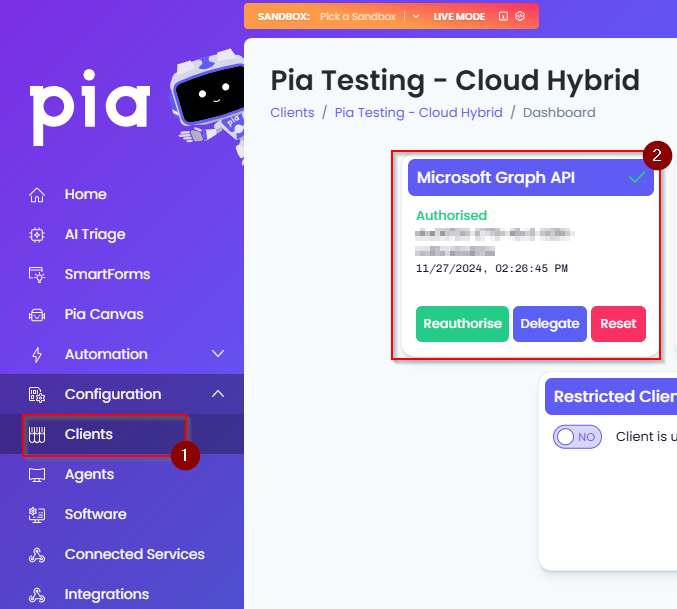
Step 1: In the SmartForms configurations, turn ON SmartForms feature for the clients you wish to access SmartForms from Thread's Magic Agent. To do so:
- Go to the SmartForms screen> Clients Tab in the Pia Partner Portal
- Set the SmartForms toggle to ON for the client
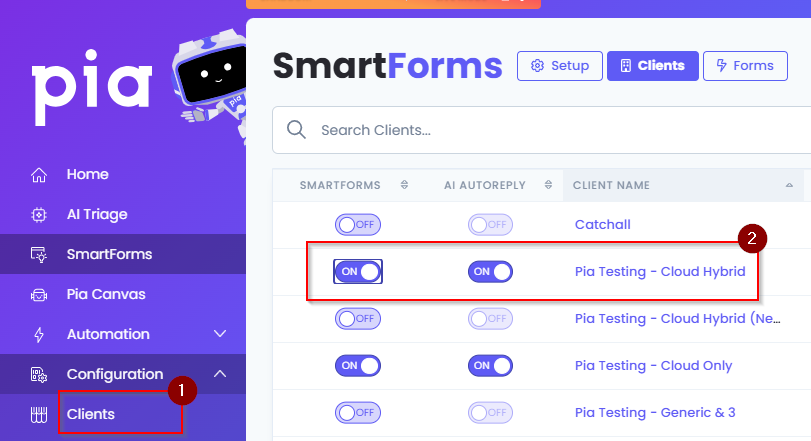
Step 2: The next step is to enable SmartForms for the client that they will be accessing via Thread. To do this:
- Click on the Enabled Forms column in the same screen
- Toggle ON the required forms for the client
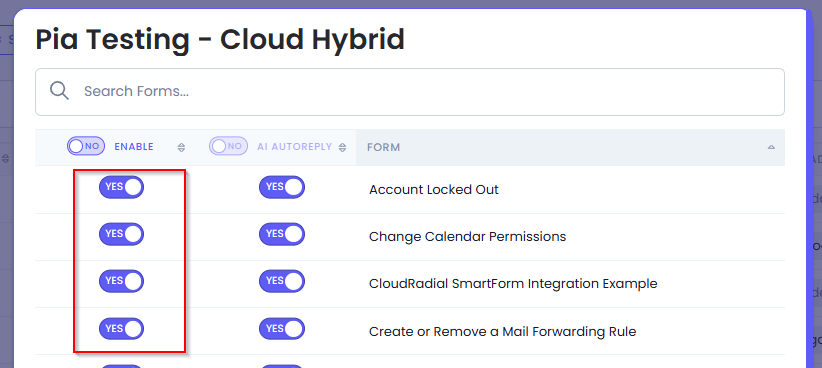
Integration Setup
Once the client has the SmartForms feature enabled, the next step is to enable the integration in the Partner Portal. Follow the steps below to configure the Thread integration:
Step 1: Go to the SmartForms screen> Integrations Tab
Step 2: Navigate to the Thread section at the bottom
Step 3: Turn ON the "Enable Authentication" toggle. This will enable the fields below:
* Embed Key: Copy the "Thread embed key" from Thread and paste it into the "Embed key" field in PIA
* Thread App API Secret: Copy the "Thread App API secret" from PIA and paste it into the "API secret key" field in Thread
This action requires you to have administrator access to both Thread and PIA to exchange API keys.
Once done, this will allow Thread users to authenticate on the SmartForms Portal.
This completes the configuration on Pia’s side.
Part 2: Configuring SmartForms in Thread
For Thread to provide a SmartForms link to your clients, you will need specific Intents configured in Thread. To learn about configuring Intents, follow this link.
Accessing SmartForms through the Thread's Magic Agent
Once the configuration outlined above is completed, you will be able to view SmartForms in Thread provided that the configuration on the Thread's end has also been completed.
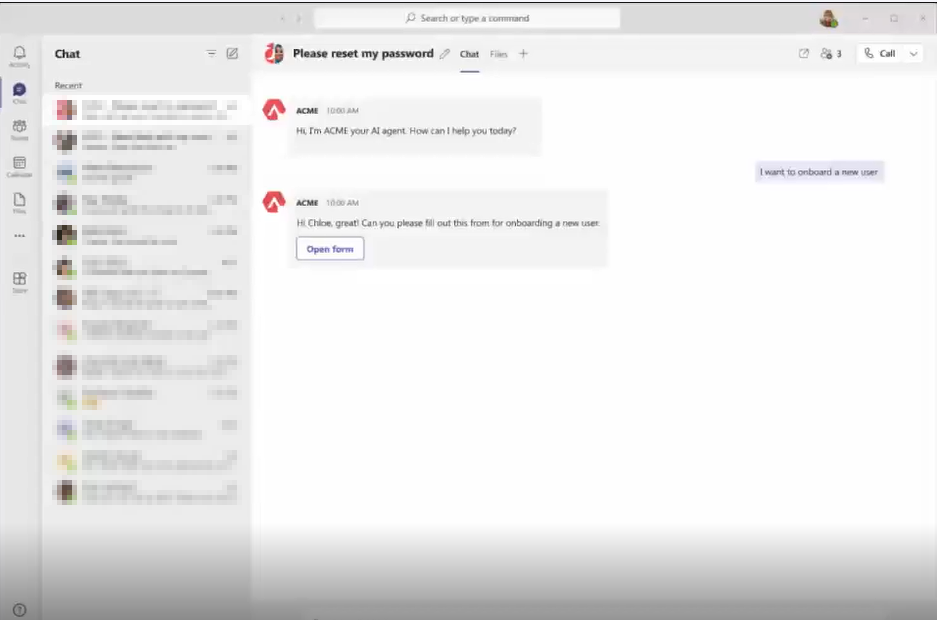
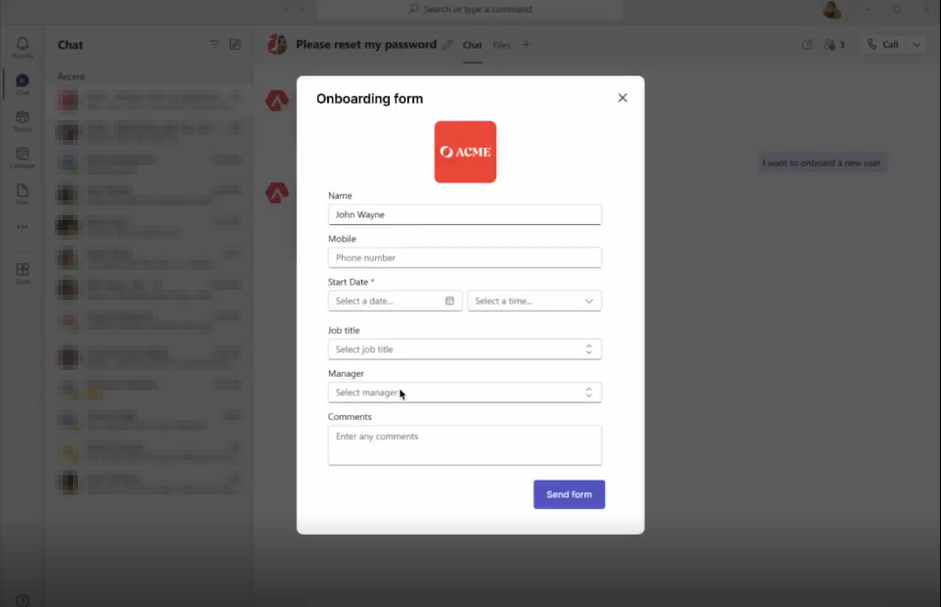
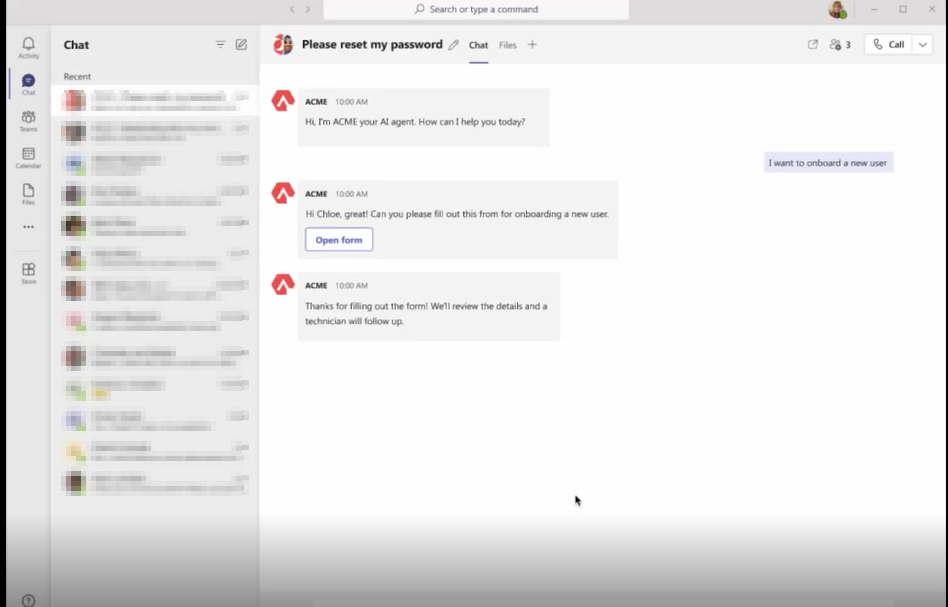
Here are some example images on how the SmartForms will be displayed in Thread's Magic Agent: