Skip Condition
Overview
The Skip condition is one of the most commonly used conditions in the Package Editor. It provides a simple way to control whether an activity should be executed, allowing you to skip an activity when specific conditions are met or not met.
Although the Skip condition is not available as a selectable option within the Package Editor, it can be added manually to any activity you use in your package by including a Skip: property beneath the task: field.
- task: example1
skip: true

- task: example2
skip: false
Example of Usage
Below is a simple example on how you can use the skip condition in your activity
- task: get_user_details
reference: user

- task: send_welcome_message
skip: =user.isInactive # Example of the syntax: skip: =reference.property
Another example to show how the Skip condition can be used to drive different outcomes within your automation based on specified conditions.
# Pia Automation Package
conditions:
- name: 'client_filter'
  optMode: 'OptOut'
  category: 'Hello World'

- name: 'chat'
  option_button: 'Skip Example'
  option_text: 'Skip Example'
  option_category: 'Pia Chatbot Category'

steps:
- task: chat_interaction
  alias: 'example_form'
  inputs:
    text: 'Do you want to skip?'
    form_name: 'yes_no_form'
    form_display_mode: 'Embed'

- task: chat_interaction
  skip: =example_form.form.Response #Direct reference of a property from the form
  inputs:
    text: "If you see this, we didnt skip using condition 1 (=example_form.form.Response)"

- task: chat_interaction
  alias: 'example_form_two'
  inputs:
    text: 'Do you want to skip due to some other reason?'
    form_name: 'yes_no_form'
    form_display_mode: 'Embed'

- task: chat_interaction
  skip: =example_form2.form.Response #Direct reference of a property from the form
  inputs:
    text: "If you see this, we didnt skip using condition 2 (=example_form2.form.Response)"

#Note: this entire inline could be bypassed as the value in response is already a True/False
- task: inline_powershell
  alias: 'skip_processor'
  inputs:
    form: =example_form.form.Response
    form2: =example_form_two.form.Response
    script: |
        return @{
            condition1 = $form -eq 'True'
            condition2 = $form2 -eq 'True'
        }

- task: chat_interaction
  skip: =skip_processor.condition1
  inputs:
    text: "If you see this, we didnt skip using condition 1 (=skip_processor.condition1)"

- task: chat_interaction
  skip: =skip_processor.condition2
  inputs:
    text: "If you see this, we didnt skip using condition 2 (=skip_processor.condition2)"

# You can combine skips with the following syntax to do an `or` statement
- task: chat_interaction
  skip: '{=skip_processor.condition1},{=skip_processor.condition2}'
  inputs:
    text: "If you see this neither skip applied"
    form_display_mode: 'Embed'
In the above example, a yes_no_form has been used which looks like below:
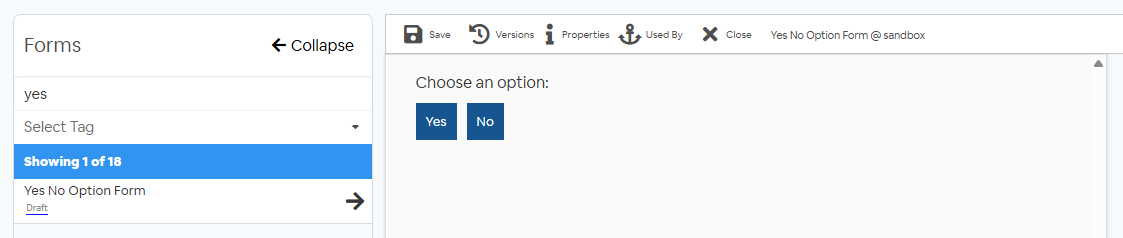
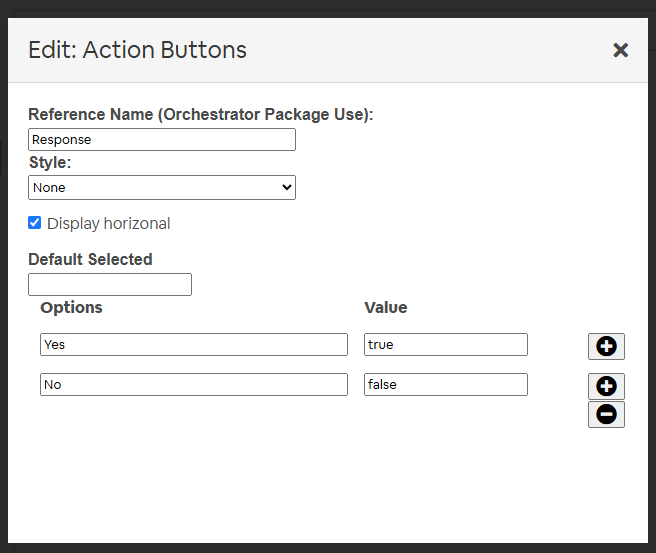
Click to view the automation running in the Tech Assist Pod
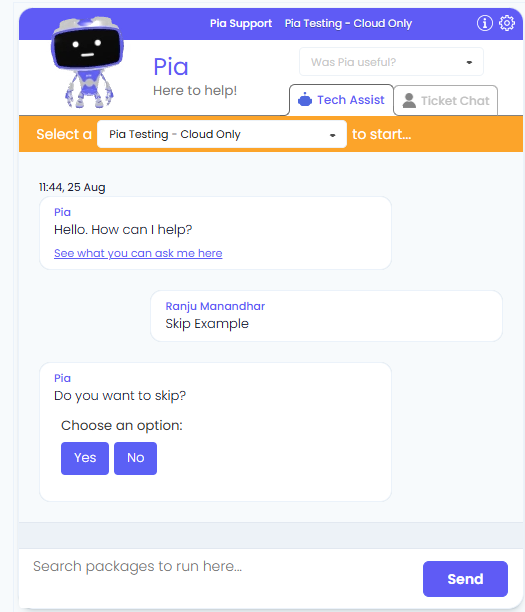
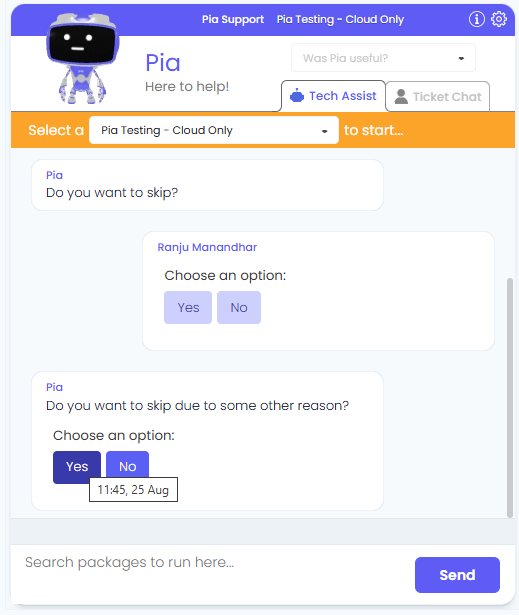
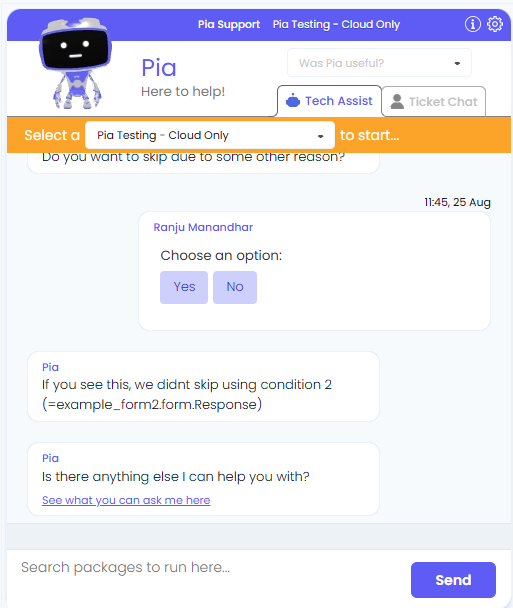
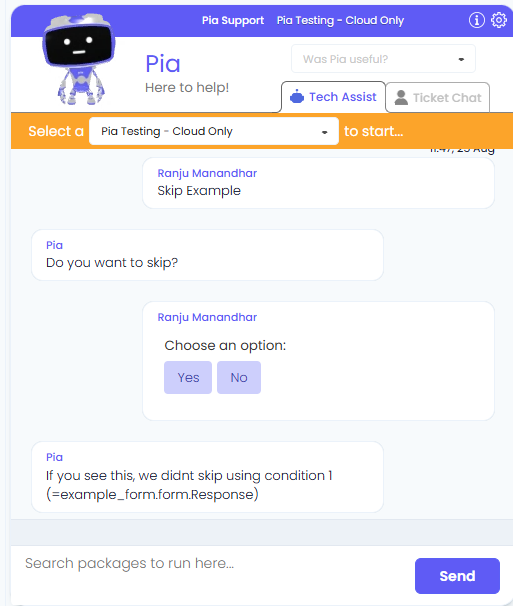
Based on the selections made for the above two forms, you'll be able to see varied output in the chatbot as below: