Pia Source
Pia Source is a developer‑focused automation tool delivered through a Visual Studio (VS) Code extension. It connects your local Git workflow to your Pia tenant so you can pull, edit, version, and push automation packages using your normal development tools. Pia Source lets developers treat Pia automations like code - stored in files, versioned in Git, and edited in Visual Studio.
Getting Pia Source for Visual Studio
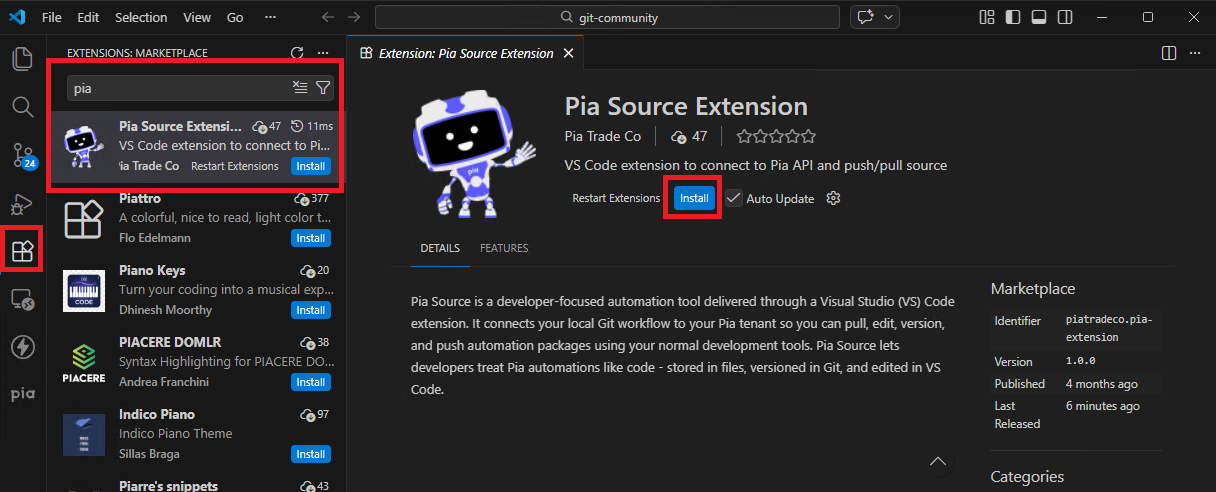
The VS Code extension for Pia Source can be downloaded from the VSCode Extension marketplace (Marketplace icon on the left and search Pia).
After installation, it will appear on the left sidebar.
Creating an API App for Pia Source
In order to start using Pia Source, you must have an API APP created for it in the Partner Portal with the correct scope assigned.
Follow the steps below to create an API APP for Pia Source:
Step 1: Login to your Partner Portal and go to the Users menu link under configuration
Step 2: Click on the "Manage API Apps" button
Step 3: Click on the "New App" button in the API Apps screen
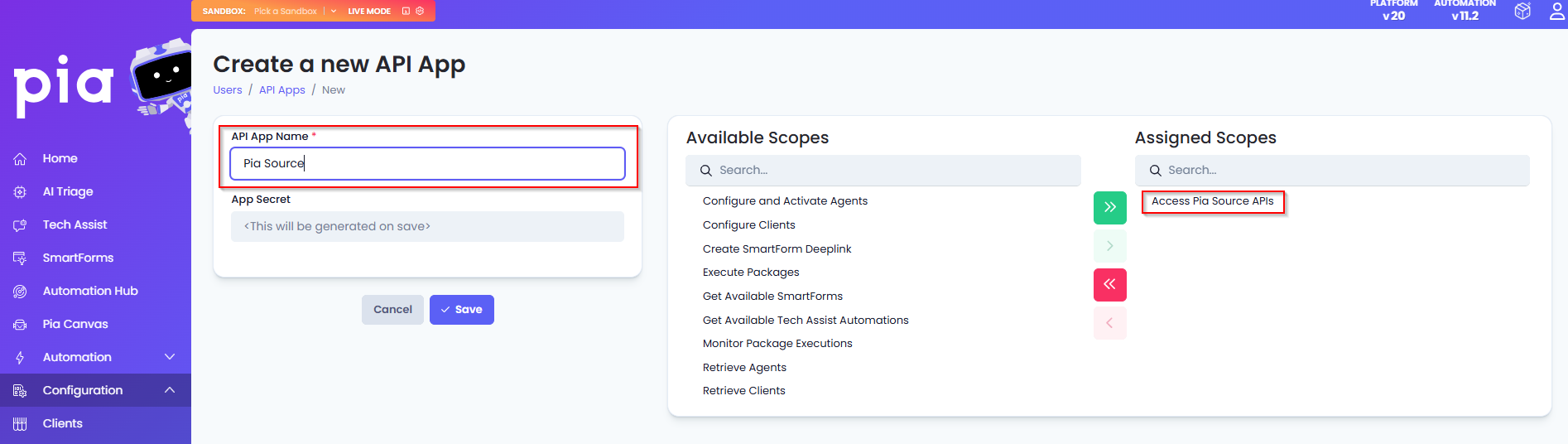
Step 4: Set the name as "Pia Source" and assign "Access Pia Source APIs" scope to this new App
Step 5: Save your changes
Connecting your Pia Source VSCode Extension with your Pia tenant
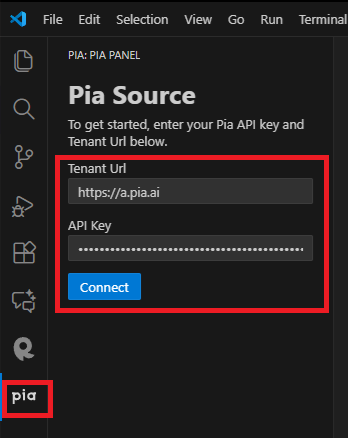
Now that you have created your new API app, enter your tenant URL (be sure to include https://) followed by API App Secret and hit Connect:
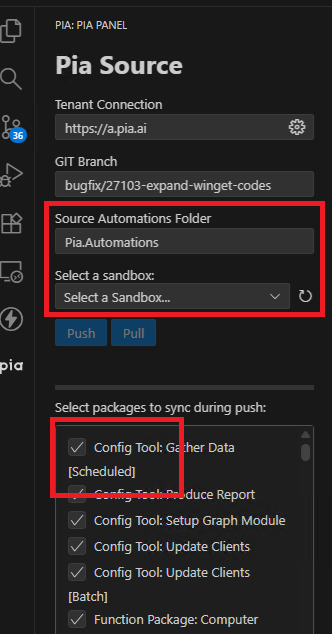
For the extension to work correctly, make sure you are connected to a repo in your local VSCode and have a branch open. The extension will detect the branch and allow you to select a sandbox to pull from Pia down to your local. You can specify the "Source Automations Folder" which is the folder Pia will use inside the workspace to place the automations. Once pulled to local, you can just use the Source Control features of VSCode to commit to the repo (Pia Source doesn't directly commit code to your GIT Repo - you can use the native source control features of VSCode to achieve this).
If you want to switch branches or push other automations, simply change your branch, sandbox selection and/or selected packages in the extension and hit "Push".