Client Profiles
Pia's AIDesk automations support multiple environment scenarios, including Prem Only, Cloud Hybrid, Cloud Only and Semi-Hybrid.
With configuration profiles, you can mix and match these supported environment types and other configuration options for clients who have complex environments.
For Example:
- Schools often have two networks, they may separate the student network from the staff network.
- You may have a client who has acquired another business and manages their IT separately but in your ticketing system, you treat this as one client servicing both environments.
For these scenarios, you can create additional configuration profiles in Pia, to represent each unique configuration for your clients.
Frequently Asked Questions
Before you delve further into the article, here are the some of the Frequently Asked Questions from our Partners:
Can I setup multiple Client Profiles to use the same Pia Agent?
We are working on providing you with this option as soon as possible.
In the meantime, one alternative that our Partners currently use is if they have multiple Domain Controllers as a part of their client's environment, they install separate Pia Agents on different domain controllers for each profile.
How do I install the Pia Agent and register automatically for one of my Client Profiles?
When you're installing the Pia Agent , you can specify the Id of a Client including the Id of the Client Profile.
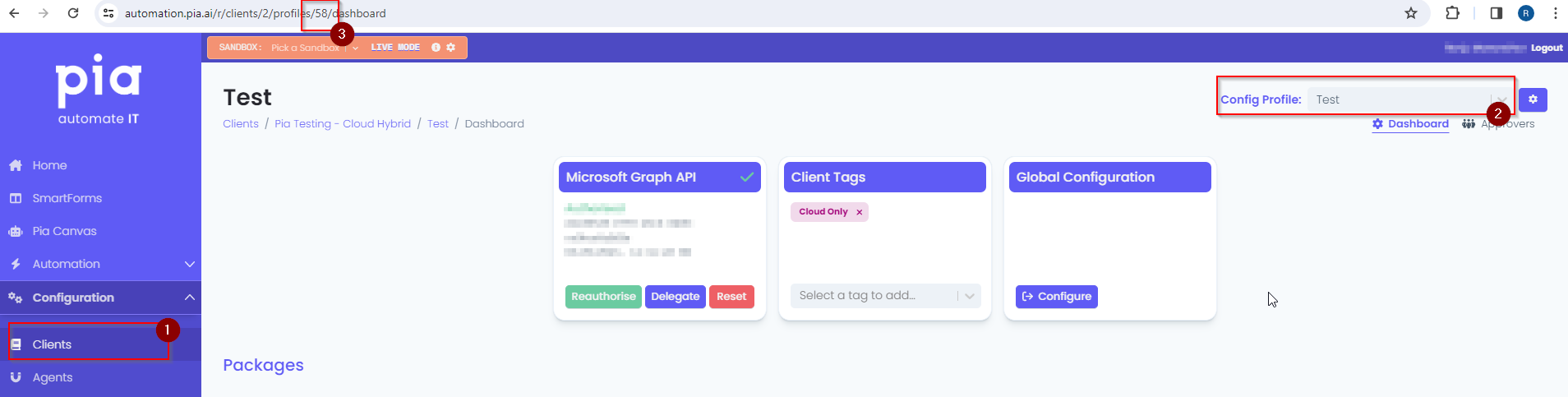
To get the Client profile Id:
- Go to the Client Dashboard
- Select the Config Profile from the drop-down
- You will be able to retrieve the Client Profile Id in the URL as shown below:
What else can I use Client Profiles for?
Here is a common scenario where Client Profiles are used:
- You have a Semi-Hybrid Client for whom you mostly use the Cloud Only Automation. In this case, you can create a new profile for Cloud Only environment and select the profile to run the automations for.
We are still working on updating our Semi-Hybrid Automations so the above use case is temporary.
Can I rename the default Client Profile?
Not at the moment but we are currently working on this option.
Creating multiple Client Profiles
When a new client is created in the Pia Client Dashboard, their default configuration is saved in a default profile which is linked to the primary environment they are using. For a client with multiple environments, multiple profiles can be created. Each profile will link to an environment type the client is using based on the details added.
Follow the steps below to create a new profile for an existing client:
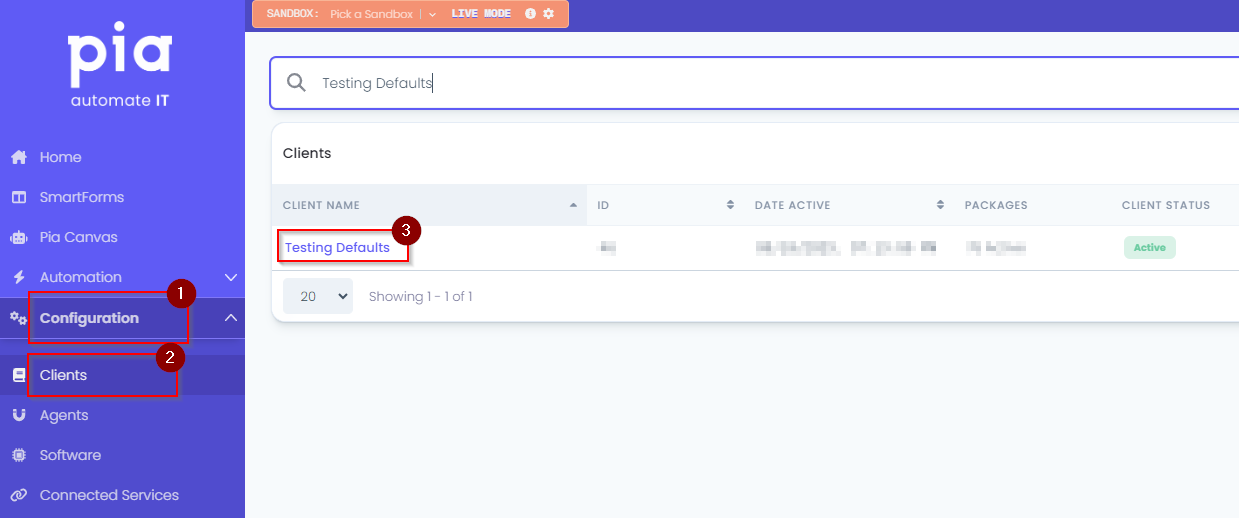
- Click on "Clients" under the Configuration menu and then select the Client from the list you want to create a new profile for.
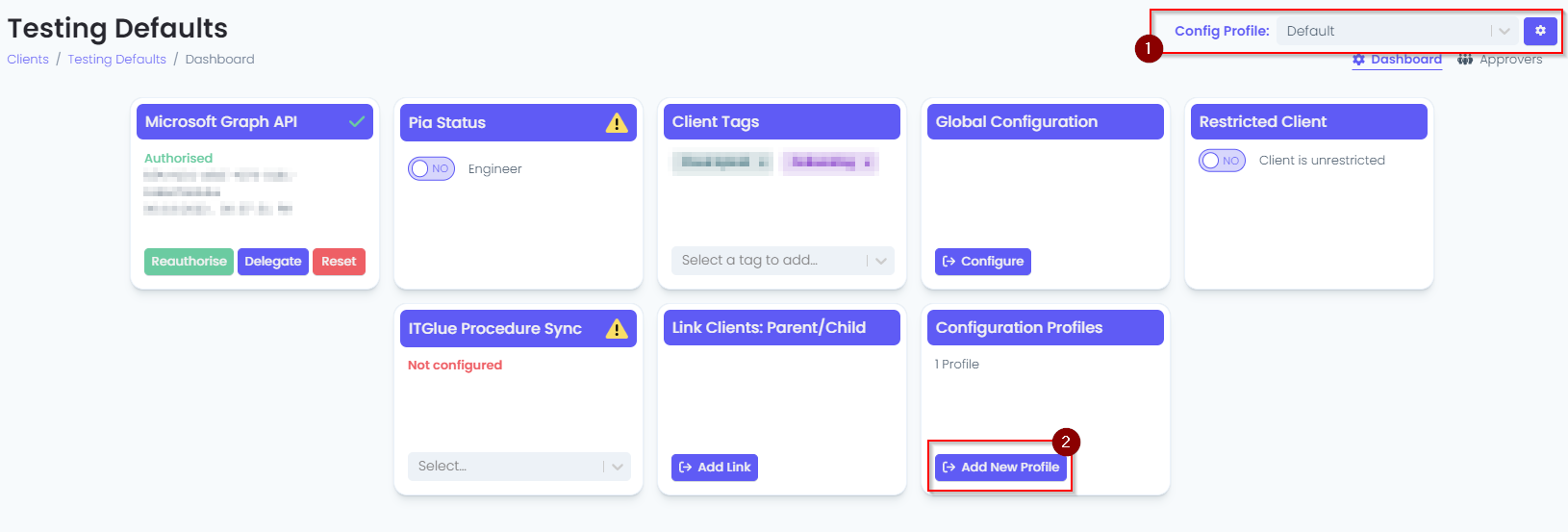
- In the Dashboard, click on the "Add New Profile" button available in the Configuration Profiles Tile.

- In the Configuration Profiles screen, a table with all the available profiles for the client will be displayed. Click on the "New Profile" button available on the top-right side of the table.

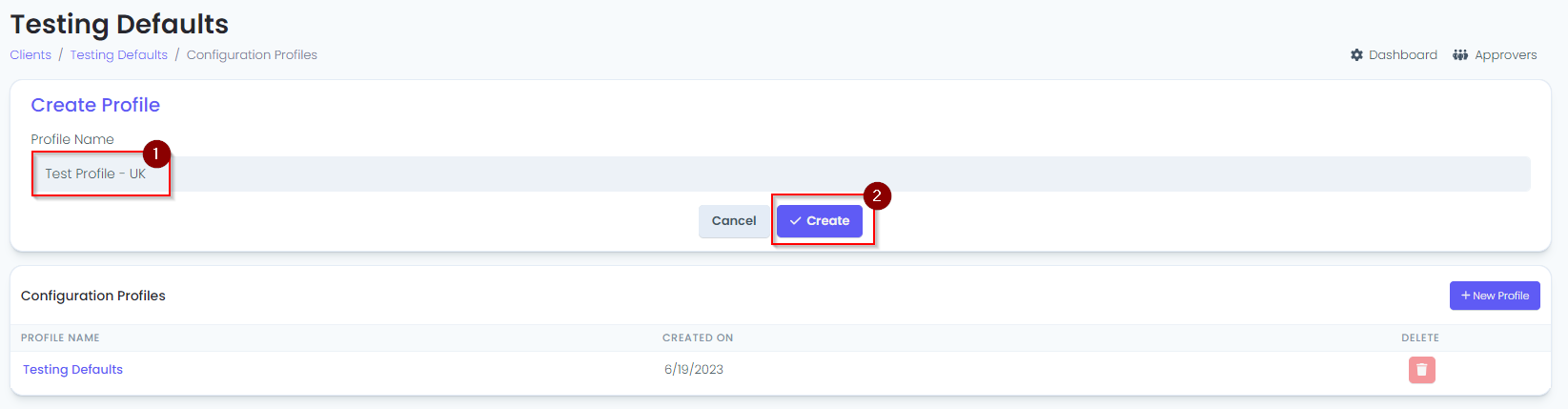
This will open up a "Create Profile" Form.
- In the form, enter the Profile Name and click the "Create" button.
Make sure that the profile name you have added is not confusing so that the Service Desk Engineer understands where the package is making the change.
You can use examples such as : Main Staff Network, Student Network etc.
- Once the profile is created, you will see the profile name appear in the Configuration Profile table. Click on the profile name to configure details. You will see the following Configuration Options in the new profile created:
- Microsoft Graph API
- Client Tags
- Global Configuration
- Package Configuration
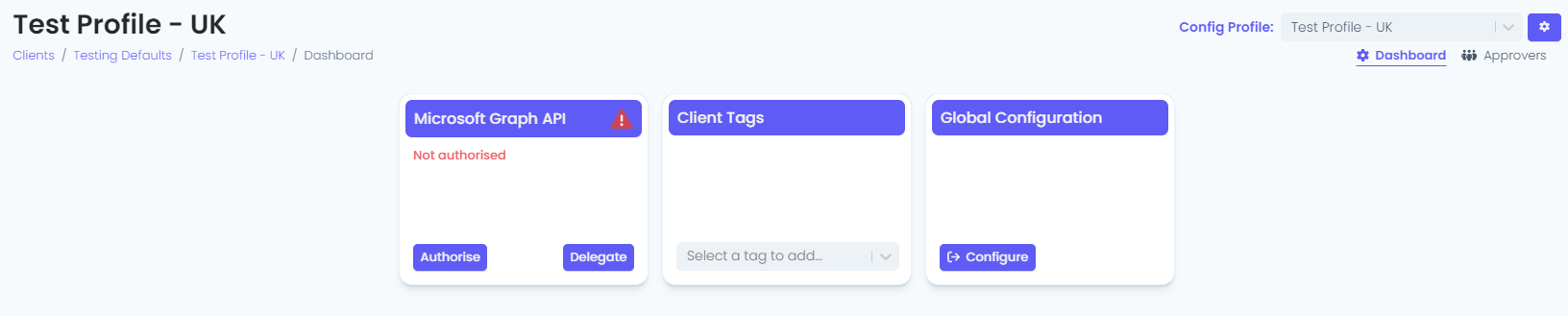
Switching between Client Profiles
In the Client Dashboard
Option 1: For a client with multiple profiles created, a drop-down will be available at the top right corner of the screen. Click on the drop-down and simply select the Profile you want to view.
Option 2: Click on the "Add New Profile" button available in the Configuration Profile tile and select the profile you want to view.
In the Pia Chatbot
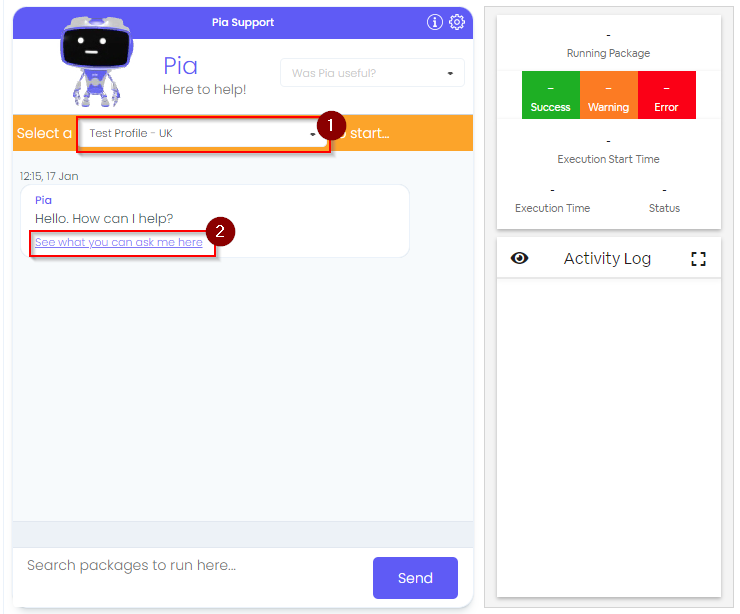
The Pia Chatbot will display a drop-down at the top prompting you to select a Client Profile before you can start execution of the package.
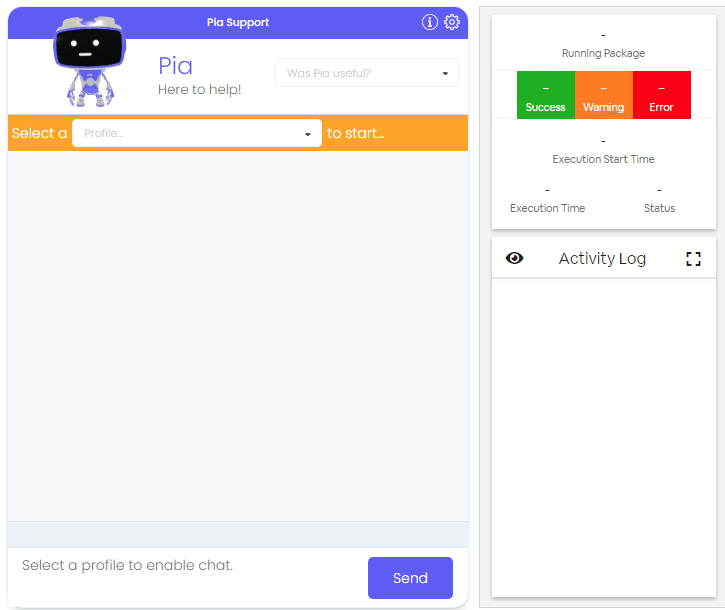
You can only see the "See what you can ask me here" prompt once you have selected a Client profile.